How to Set Play Time Limits on a Switch From Your Phone
Set daily limits and bedtimes from your phone, and make them stick.
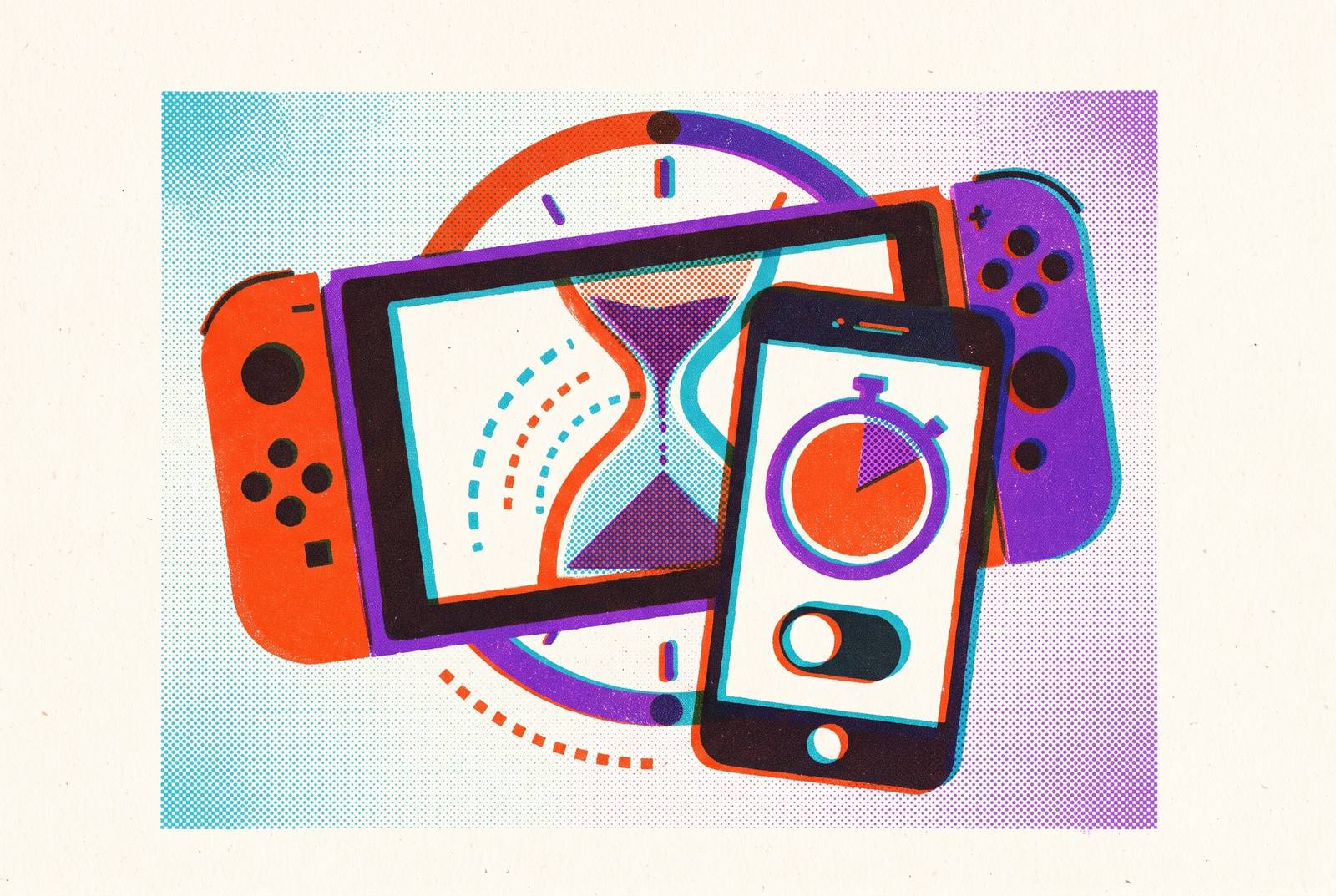
Setting play time limits on a Switch starts on your phone. The free Nintendo Switch Parental Controls app lets you set daily limits, add a bedtime schedule and see what was played in about ten minutes. You need to choose whether the console just says time is up or stops play.
Why play time limits require the phone app, not the console menu
You go to System Settings, find Parental Controls and look for a timer. It is not there to set on the console alone. Nintendo’s official FAQ explains that play time limits can only be managed through the smart device application. Setting a PIN or an age rating on the Switch does not set a time limit, even though all these settings are part of parental controls.
The system divides responsibility across three places. The console controls which software or functions may be used, while the app controls how long and when the system may be used. Nintendo Account settings control purchases and account-level restrictions, so changing a purchase setting will not set a schedule either. It works this way on the original Switch, Switch Lite, Switch OLED and Switch 2.
Downloading and installing the Nintendo Switch Parental Controls app
On your phone, search for “Nintendo Switch Parental Controls” in the App Store for iOS or Google Play for Android. Choose the app published by Nintendo Co., Ltd. It is free on both platforms. After installing it, open it and sign in with a Nintendo Account belonging to a parent or guardian aged 18 or above. If you do not yet have an account, create one through Nintendo’s account site before proceeding.
The account requirement is separate from the app download. Installing the software gets it onto your phone, but signing in gets you to the starting line for setup. For a two-parent household, access need not depend on sharing one phone. Up to two parents or guardians in the same Nintendo Account family group can use their own devices and app installs to share access to the child’s console controls.
Linking the app to the Switch console with a registration code
With the app installed and signed in, turn to the Switch for the one-time pairing step. Go to the HOME Menu and open System Settings, then Parental Controls and Parental Controls Settings. Select “Use Your Smart Device” to begin linking. Enter the registration code displayed by the console into the app to pair the devices. An internet connection is required for the app to communicate with the Switch.
As you set it up, choose a PIN between 4 and 8 digits. The PIN is required when restrictions need to be bypassed or changed, so avoid the child’s birthday and simple sequences. A PIN the child can guess hands them the key to the boundary you are setting.
After pairing, you can manage the console remotely from the phone rather than returning to its menus for each adjustment. The app also accommodates more than one console. If the family has another Switch, such as a sibling’s Switch Lite, link that device individually. Each linked console then shows up in the same parent app, so you can control all the household’s devices from one dashboard.
Setting the daily play time limit and choosing Suspend Software
In the app, open Settings and then Play Time Limit. Choose the daily allowance in 15-minute increments, up to several hours. That sets the timer, but not necessarily a stopping point. By default, reaching the limit produces a notification on the Switch screen while the game continues running. A child can dismiss the alert and keep playing.
To make the limit enforceable, enable “Suspend Software.” With this option on, the software is suspended and the console enters sleep mode when the timer runs out. Nintendo’s app listing describes the option as allowing the game to be suspended as soon as the play-time limit is reached.
For younger children, Suspend Software is the more reliable choice because it does not depend on their response to a reminder. For older children who stop when asked, notification-only mode may work well. The known gap is not the presence of that option, but assuming a selected daily limit automatically enforces itself.
The timer also measures more than time inside games. Active gameplay and app usage count, as does time spent on the Home Menu or in System Settings, because the timer runs whenever the console is in use. The daily timer resets at midnight, and unused time does not roll over.
Adding a bedtime schedule and understanding how it interacts with the daily limit
A daily allowance answers how long play can last. Bedtime answers when it must end. In the app, set a bedtime between 4 PM and late evening and a next-morning start time between 6 AM and 9 AM. As with the daily limit, the bedtime setting only locks the console when Suspend Software is enabled. The same enforcement choice governs both tools.
When both settings are on, the first limit reached takes effect. A child who still has unused play time at bedtime is nevertheless stopped for the night. Conversely, a child who uses the whole daily allowance by 3 PM cannot resume at 4 PM just because bedtime is later.
For a less abrupt transition, set the console’s bedtime 15–30 minutes before the child’s actual sleep time. That gives the child time to wind down after play ends. If the household follows different school-night and weekend routines, use “Vary by Day,” also called per-day settings. It lets you assign a different limit to each day of the week without manually rewriting the schedule every morning.
Granting extensions and suspending play remotely from the phone
A configured limit does not rule out exceptions. The app lets you grant an extension before or after the allowance runs out, with additions of 5, 15 or 30 minutes, or one hour. The PIN is required to authorize an extension. Keeping that PIN private prevents a child from quietly granting extra time, so its usefulness extends beyond the initial setup.
You can also move in the opposite direction. A button in the app lets you suspend the game on the console in real time, whether a notification has been ignored or an unexpected situation requires play to stop. For a holiday or reward day, the app also lets you disable the limit for a single day without permanently changing the daily setting.
Checking play activity reports to see what was played and for how long
Once the app is linked, its daily summary shows which games were played, for how long and whether the daily limit was reached. You also receive a monthly overview of gameplay activity. Rather than estimating how the Switch was used, you can discuss play habits with a specific record in front of you.
The reports can separate activity by console user. In a household where children share a Switch, that makes it possible to see how play was distributed rather than treating every session as one child’s activity. Reporting and enforcement are different capabilities, however. The app can show who played in its reports, but each user still shares the same daily timer.
Shared parental access is useful here as well. Nintendo’s support page says two parents or guardians in the same Nintendo Account family group can each see play activity on their own devices. Neither needs to rely on the other’s recollection of a report. The practical value is a common factual basis for conversations about games and time, rather than a second set of eyes watching every session.
The shared-console limitation and what families with multiple children can do
Nintendo’s FAQ states that most parental-control options are system-wide rather than per user, with the same restrictions applying to everyone using the console. If one sibling uses half the daily allowance, the next sibling inherits what remains. Different profiles do not divide that shared timer into individual allowances.
For families sharing one device, the practical workaround is to create separate Nintendo Accounts for each child and use the activity log to monitor individual use. You can then manually adjust limits based on those usage patterns. This requires parental involvement rather than automatic per-child enforcement. It is still useful when children have different ages or schedules, because decisions can reflect who actually used the shared time.
If each child has a Switch or Switch Lite, link each console on its own and give it its own daily limit through the same dashboard. Purchase restrictions have their own settings, even on a shared device. Those can be set per user through Nintendo Account settings, although they do not solve the shared-timer limitation.
Two known gaps that require additional steps
The phone’s remote controls depend on a connection. Nintendo’s support page states that internet access is required for the app to work with the console. If the Switch is offline or in airplane mode, the app cannot track activity or enforce limits in real time. Restrictions apply once the console reconnects, but that leaves a gap during offline play.
To reduce opportunities for using disconnection as a workaround, use the console’s own settings to restrict online play and internet access. These controls are part of Nintendo’s existing system and use the tools and hardware already in place.
The other final check is much simpler. Before you finish setup, check that Suspend Software is on if you want play to stop. Entering an allowance and a bedtime can make the configuration look finished while leaving enforcement disabled. Checking that one toggle closes the notification-only gap for both settings.
What the Nintendo Switch 2’s GameChat controls add to the parental controls picture
For Switch 2 families, the app also governs communication. Nintendo’s support page says children under 16 and supervised users need the app linked to the console, along with extra controls for the feature, to use GameChat. Parents can manage which friends a child is approved to chat with and decide when video chat can be used. GameChat is exclusive to Switch 2, so this is a separate layer from the time controls shared across the hardware range.
The setup already completed provides its foundation. Downloading the app, linking the console and choosing a PIN positions a family to configure GameChat, though its additional controls still need attention. For a later upgrade, the same app can manage the newly linked Switch 2 rather than requiring a different parental-controls system. The ten-minute setup therefore serves today’s play schedule and gives you a starting point for the family’s next Nintendo console.
Sources
- Parental Controls on Nintendo Switch 2 and Nintendo Switch Overview/FAQ
- Nintendo Switch Parental Cont… - Apps on Google Play
- Parental Controls on Nintendo Switch 2 and Nintendo Switch Overview/FAQ
- Nintendo Switch Parental Controls
- Parental Controls App - Nintendo US
- How to Set Play-Time Limits
- Nintendo Switch Parental Cont… - App Store - Apple
- How to Download or Update the Nintendo Switch Parental Controls Smart Device App