How to Connect a PS5 Controller to an Android Phone
Pair over Bluetooth or USB-C, and learn what Android won't do.
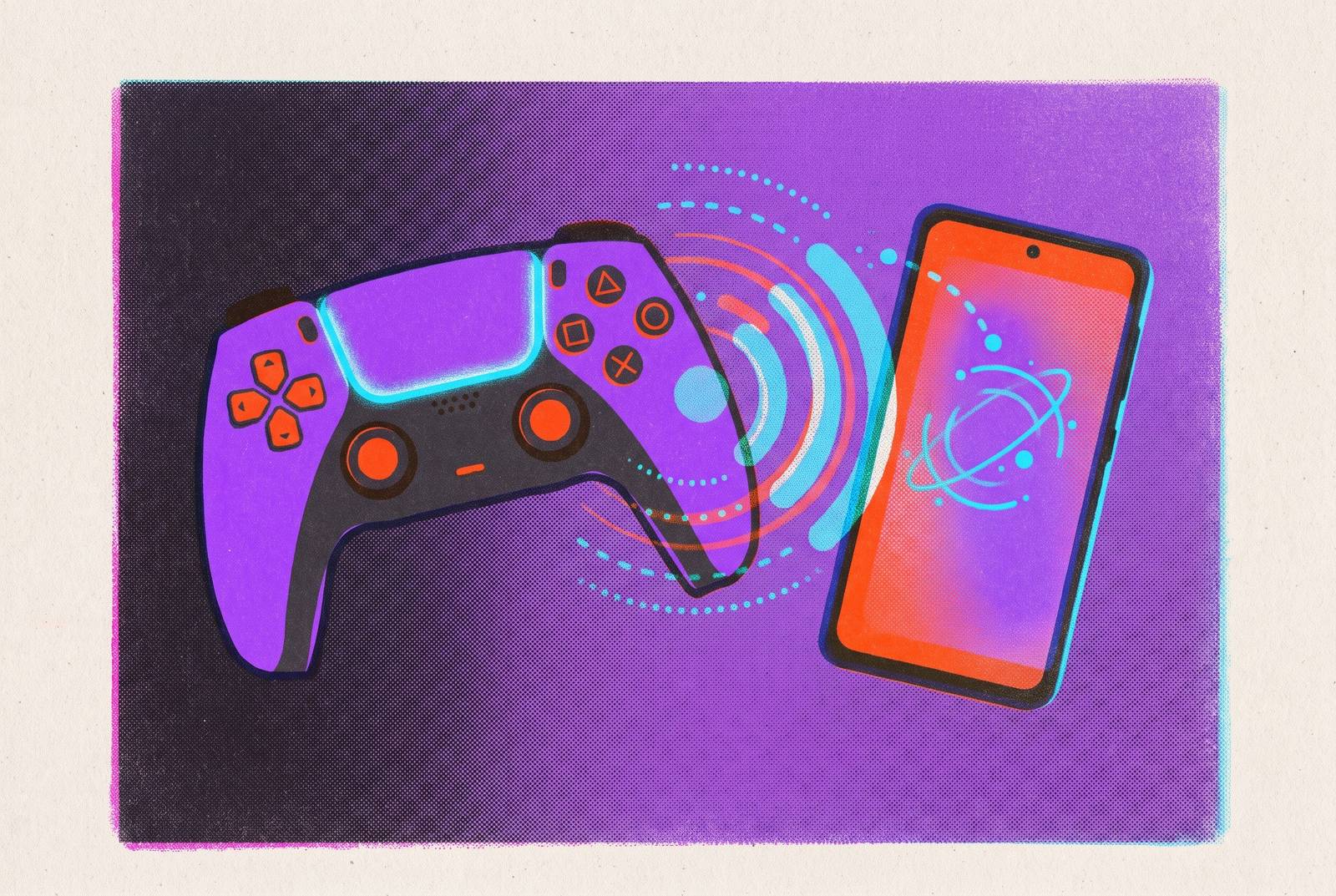
Connecting a PS5 DualSense to an Android phone is straightforward over Bluetooth or USB-C. A dependable gaming setup requires knowing which device owns the connection, what causes delayed input, and which features Android supports. With those distinctions clear, the controller becomes a useful mobile gamepad rather than another blinking device awaiting negotiation.
What you need before you start pairing
Have a PS5 DualSense, an Android phone or tablet, and, for a wired connection, a data-capable USB-C cable ready. Sony lists a recent Android version as the supported baseline for Bluetooth and USB, and a newer version is recommended for reliability. Charge the controller before starting, and disconnect it from any active PS5 or other device connection. If its lights are on, hold the PS button until they go dark.
You do not need an extra app or a PlayStation account. The DualSense uses standard Bluetooth HID, which lets Android recognize it natively as a gamepad. Make sure the controller is a DualSense rather than a DualShock 4, because their pairing buttons differ. The DualSense has a Create button, and the older controller has Share.
How to pair the DualSense over Bluetooth
Start with the controller fully off. Hold the PS button until both the light bar and player indicator go dark, then unplug any USB cable. Next, hold Create and PS together for several seconds, until the light bar pulses rapidly. Create is the small button to the left of the touchpad. The fast flashing shows that the controller is in pairing mode and has yet to connect.
Open the phone’s Bluetooth settings to start scanning. On Google Pixel, go to Settings > Connected devices > Pair new device. On Samsung Galaxy, go to Settings > Connections > Bluetooth > Scan. On OnePlus, Xiaomi, and OPPO, go to Settings > Bluetooth > Pair new device. The menus differ, but the steps on the controller are the same.
Select “Wireless Controller” from the available devices. Android labels the “DualSense” with that generic name. Approve any pairing prompt, then wait for the player indicator to hold steady. That steady light confirms the pairing. If the controller’s roughly two-minute pairing window expires before it appears, turn it off and repeat the sequence.
How to connect via USB-C when Bluetooth is not reliable
USB-C is more than a rescue route for failed pairing. It removes the Bluetooth hop and is the most effective way to cut controller input delay in fast-paced games. Connect the phone and DualSense with a data-capable USB-C to USB-C cable. A charge-only cable can power the controller without transmitting a single button press, making it a particularly convincing impostor.
The phone must support USB host mode. Most flagships from 2024 onward do, and successful file transfer to a USB stick provides a quick test. A USB-C OTG adapter is needed only when the cable has a USB-A end. With USB-C at both ends, the direct connection is cleaner.
There is a battery trade-off to that simplicity. The phone charges the controller plugged into it, so playing for longer with a cable drains the phone faster. That may be easier to accommodate on the couch than during a commute. USB changes the connection path while leaving Android’s feature support unchanged, so adaptive triggers and haptic feedback remain unavailable.
Why the controller keeps jumping back to the PS5 (and how the four pairing slots fix it)
A short press of PS reconnects the controller to its last-used device. If that was the console, the phone is not the destination, even after a successful earlier pairing. Sony describes four device memory slots that let you choose which device to connect to.
The buttons for Slot 1 are PS + Triangle, and those for Slot 2 are PS + Circle. The buttons for Slot 3 are PS + Cross, and those for Slot 4 are PS + Square. To assign a device, hold its corresponding action button together with PS for a few seconds during pairing. The recommended arrangement is the PS5 in Slot 1 and the phone in Slot 2. You can then switch by pressing the buttons together without going through pairing again.
An active console connection still needs to be released. Sony states that switching from a phone or Mac does not work while the PS5 owns the link, so turn the console off or manually reassign the controller. If all four slots are full, pairing another device replaces the slot that has gone longest without use.
Input delay after pairing, and what actually causes it
Input delay is the gap between pressing a button and the game registering it, which can feel like sticky jumps, drifting aim, or mushy movement. Network lag is different, describing the delay between the phone and the game server. If you die around corners or see opponents react before you do, network lag may be to blame.
Which delay are you actually trying to reduce? If the game reports low ping but the controls still feel sluggish, changing servers will not fix the controller’s input path. Switch to USB-C for the biggest improvement in fast-twitch games.
If you keep using Bluetooth, go to Settings > Apps > Show system apps > Bluetooth > Battery > Unrestricted. On Samsung, also remove Bluetooth from the sleeping app list under Background Usage Limits. Enable Game Mode or Game Booster for the game to prevent radio throttling when the screen dims. Avoid using Bluetooth earbuds and the DualSense on the same radio simultaneously, because shared use can make audio and stick input hitch. Keep the controller charged, since a depleted battery can drop Bluetooth reports before its light visibly dims.
What DualSense features work on Android and what does not
Android gets the DualSense’s core controls, which are enough for precise play. Both analog sticks, the D-pad, face buttons, and L1/R1 bumpers work, while L2/R2 register as standard analog triggers. Options, Create, and the touchpad’s button function also work. The distinction is between controlling the game and reproducing the controller’s PS5-specific sensations.
Sony states that adaptive triggers and haptic feedback are incompatible with Android mobile devices. That is true over both Bluetooth and USB.
Although Android 12 or newer allows DualSense pairing for PS Remote Play, Sony’s mobile compatibility guidance still excludes adaptive triggers and haptics. The PS5 runs the game while the phone relays its picture and your input. Seeing a PS5 game on the screen does not turn the phone into a PS5 controller connection.
Which Android games have the best controller support with the DualSense
Dead Cells offers precise Metroidvania play with menus fully navigable by controller, while GRID Autosport supports the pad throughout its racing experience. Stardew Valley works with a controller during gameplay, but its Android menus still need screen taps unless a third-party mod is used.
Free games also offer strong controller options. Call of Duty: Mobile matches pad players with other pad players, building controller use into its matchmaking. Fortnite has full pad support on Android. Genshin Impact added full Android controller support in v5.5, but controller mode has to be turned on in its settings. Wreckfest also supports force feedback specifically with the DualSense.
For an unlisted game, test its controller settings. A game made only for touch may ignore the pad or map its buttons the wrong way even though Android sees the connection.
Using the paired DualSense with PS Remote Play, Xbox Cloud Gaming, and GeForce Now
PS Remote Play suits someone who wants to play through their PS5, but pairing the controller to Android does not itself connect the phone to the console. Install the PS Remote Play app and use the same PSN account as the PS5. A suitable network connection is also required, with both upload and download speed relevant to the experience. Sony recommends a faster connection for the best results.
The app is free to download on Android. Sony’s August 2026 guidance says that local Remote Play is still free to use without a PS Plus subscription. Its September 2026 v9.5.0 update dropped support for Android 10, so the app now needs at least Android 11. The recommended client setup is Android 13 or newer with v9.5.0. The app’s minimum version and DualSense compatibility requirements are separate checks.
Technically confident users also have an alternative client option. Momiji appeared at the end of September 2026 as a free, open-source Android Remote Play client built on the Chiaki lineage. It has no ads, tracking, or paid tier.
Xbox Cloud Gaming uses the paired DualSense as a standard gamepad. It is available through the Xbox app on Android and through the official browser option at Xbox.com, with a Game Pass subscription required for full access. A limited ad-supported free tier with session caps is being tested for Xbox Insiders. GeForce Now also works with the paired controller.
Troubleshooting common connection failures
If the controller never appears in a Bluetooth scan, inspect its light state first. An already active connection prevents the phone from taking over, while rapid pulsing indicates that discovery is available. Check that you are using Create, which takes the place of the DualShock 4’s Share button. Restart pairing if its discovery window has expired. If no light appears at all, charge the controller for a short time before retrying.
If pairing succeeds but immediately drops or returns to the PS5, fully power off the console. Rest mode keeps the Bluetooth radio active, leaving the console connection as a possible source of interference with the intended switch. Use the phone’s assigned slot for the next connection.
If a wired connection supplies power but no input, swap to a known data-capable cable. Then test USB file transfer on the phone’s port to check host support. A failure there may indicate a charge-only port or missing USB host mode. Also remove the phone case if it prevents the USB-C plug from seating fully. A plug that is only partway in can look connected even when it has not made a connection.
If the controller connects but a game ignores it, test a title known to support external controllers. The Android home screen is not a reliable test. Check the game’s own controller mode before deciding that the connection is broken. If supported games still receive no input, disable third-party accessibility apps one at a time and retest, because an accessibility service may be intercepting it.
If Bluetooth lag persists after the earlier power and Game Mode changes, USB-C is the definitive connection-side fix. This also applies after trying 5 GHz Wi-Fi as part of Bluetooth mitigation. It does not promise to repair server lag, which remains a separate problem.
Why a dedicated mobile controller is worth considering alongside the DualSense
The DualSense was designed for a screen at couch distance and leaves a 6-inch phone display needing separate support. A separate phone and controller leave you managing two objects. That arrangement can work well, but it does not become an integrated handheld merely because the buttons respond correctly.
The DualSense has real advantages for a PS5 owner. Its layout is familiar, its buttons and triggers are well-calibrated, and using a controller already owned makes the cost of entry effectively zero. For occasional mobile play, those strengths are persuasive. But playing for longer can become uncomfortable and tire the hands in ways that a 10-minute test may miss.
By physically integrating with the phone, a purpose-built mobile controller turns the display and controls into one object with a balanced grip. The reason to consider one is not that the DualSense cannot do the job.