PS Remote Play App Setup and Compatibility
Stream PS4 and PS5 games to your phone or PC with these compatibility requirements and setup steps.
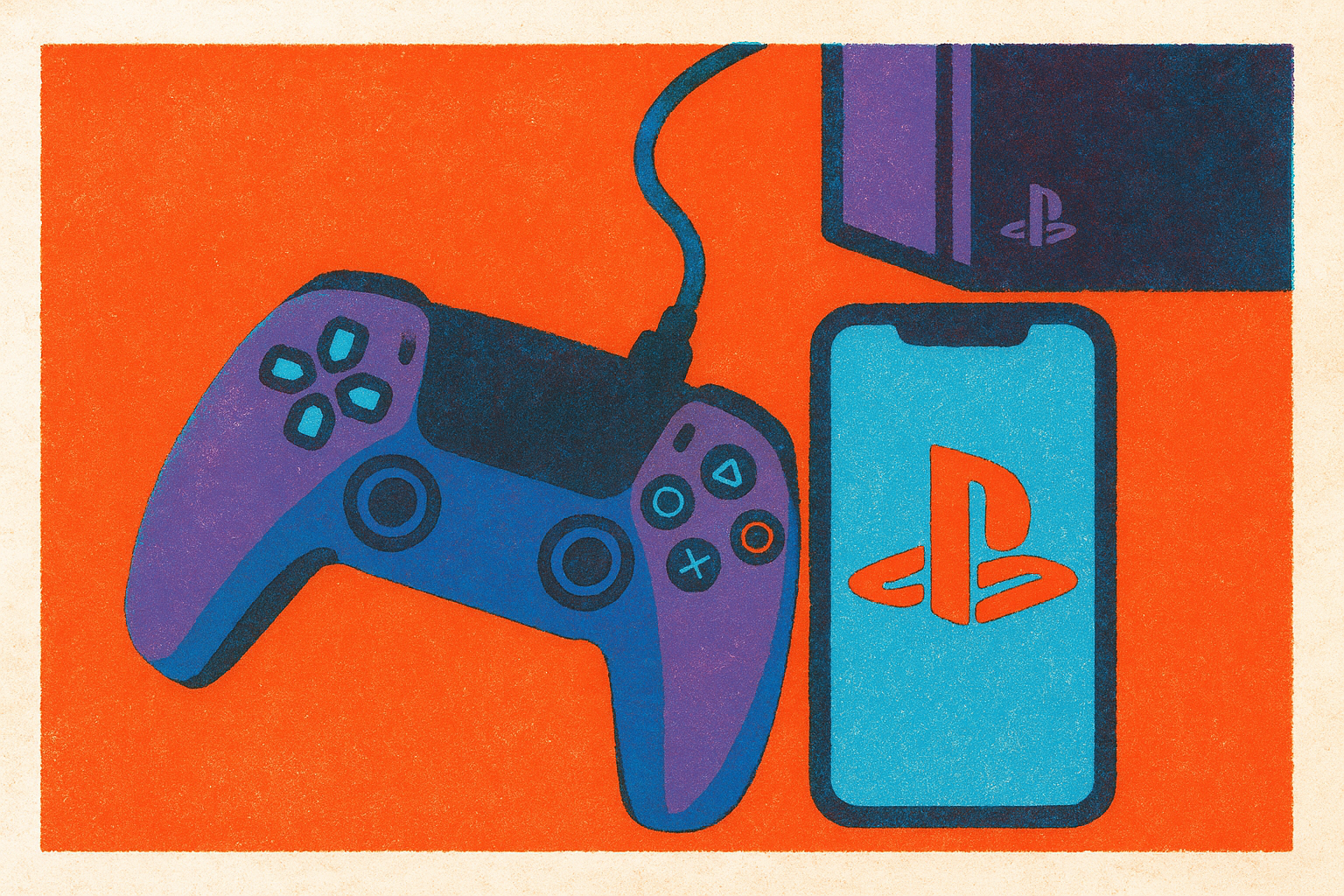
PS Remote Play streams games from a PS4 or PS5 you already own to a phone, tablet, PC, Mac, or Android TV box. The console renders the game, the app on your other device shows it and sends your inputs back, and there's no subscription fee sitting in the middle.
That last part trips people up more than it should. If your PS5 is fully off and not sitting in rest mode, the app has nothing to talk to, and that single fact causes more confused first-time users than any router setting or codec ever will. Before we get into frame rates and Bluetooth pairing, sit with the basic shape of the thing: your console, streaming to your device, over your network. Now let's see whether your particular pile of gadgets can actually run it.
Which devices and OS versions are currently compatible
Check your OS version before reading another word. Check what it actually says in Settings right now, since assumptions about version numbers tend to be wrong.
On iOS and iPadOS, Sony's September 2025 update (version 8.5.0) requires iOS 15 or later, and dropped support for iOS 14 without much ceremony. Want to use a DualSense controller? You need iOS 14.5 at minimum. The DualSense Edge, the pricier one with swappable sticks, needs iOS 16.4. These gaps look small on paper, but they add up fast if you're running an older iPad you keep around strictly for reading in bed.
Android tells a similar story. App version 9.1.0, released in May 2026, bumped the floor to Android 10, quietly cutting off older budget phones stuck on Android 9. DualSense pairing over Bluetooth needs Android 12 or later; the older DUALSHOCK 4 only needs Android 10. No controller at all? Touch controls work fine on Android 10 and up, which is the fallback for anyone whose hardware drawer is a mess of hand-me-downs.
Android TV has its own bar: OS 12 or later, with the Google TV Streamer 4K box and Chromecast with Google TV both confirmed working. The floor has just moved up on both major platforms in ways nobody bothers to announce with a press release, so it pays to check before you assume your setup still qualifies.
Setting up Remote Play on PS5, starting with the console itself
The console has to say yes before your phone can even ask. Go to Settings, then System, then Remote Play, and flip on Enable Remote Play. It's off by default on new consoles, and this one toggle is why people end up staring at a spinning "searching for console" screen convinced their network is broken.
Want to play while the PS5 looks off to anyone glancing at it? Rest mode needs configuring. Settings, System, Power Saving, Features Available in Rest Mode: turn on both Stay Connected to the Internet and Enable Turning on PS5 from Network. Skip these two and the console has to be fully powered on before any session starts, which defeats a good chunk of the point.
Then there's the step people forget entirely, which is pairing a device for access away from home: a hotel room, a friend's couch, wherever. On the console, go to Settings, System, Remote Play, Add Device, and you'll get a sign-in code. That registration ties to the specific device, not your whole account, so every new phone or laptop needs its own fresh code. Skip it, and the app finds your console just fine over home Wi-Fi, then fails completely the moment you try it from a coffee shop three states away. The console has no idea that device is allowed to reach it remotely until you've told it so.
Setting up the app on iPhone, Android, PC, and Mac
The setup script barely changes across platforms. Download PS Remote Play, sign in with the same PSN account tied to the console, pick your PS5, and the app searches the local network and connects on its own. For access away from home, tap Add Device and punch in the sign-in code from the last section.
Android has one quirk worth flagging: pair your DualSense or DUALSHOCK 4 over Bluetooth before you open the app, not mid-session. Android's Bluetooth stack handles DualSense pairing more reliably when the controller connects before video negotiation kicks in, and doing it backward is a common source of "why won't my controller work" posts online.
Mac has its own small trap door. On first launch, macOS asks for network access permission, and if you're using a Bluetooth controller, it also asks for accessibility permissions under System Settings, then Privacy & Security. Deny either one, even by accident, and the app opens fine, looks fine, and the controller just sits there doing nothing, no error message, no warning. The fix: go back into Privacy & Security, grant both permissions by hand, relaunch. iOS, by comparison, is close to painless. Check compatibility, pair the controller before or after launch, and move on.
Network requirements and how to get a smooth, low-latency stream
Sony lists 5 Mbps upload and download as the stated minimum, with 15 Mbps recommended for anything stable. Remote Play runs over UDP port 8572, which matters if your router has strict firewall rules, or if you're on a campus or office network that blocks unusual ports by default.
There's a rough pecking order for connection quality. Wired Ethernet into the console sits at the top, since it strips out most Wi-Fi interference right at the source. After that, 5 GHz Wi-Fi on your playing device works well, assuming nothing else on the network is mid-download or streaming 4K video at the same moment. Here's the mildly surprising bit: a strong 4G or 5G mobile hotspot can genuinely beat a weak home router, worth remembering if you live somewhere broadband has never quite gotten its act together.
When the connection is marginal, one setting usually fixes it. Dropping the streaming resolution or frame rate inside Remote Play's settings trades a bit of sharpness for a much smoother picture, and that single adjustment resolves most complaints about choppiness without you touching the router at all.
One honest caveat: even on a great connection, streaming adds a sliver of latency that no software update erases. Slower, single-player, story-heavy games barely notice. Fast-twitch competitive shooters notice immediately, and so will you.
Controller options on mobile and what DualSense features don't make the trip
Touch controls work on any compatible device, and they're fine for checking on a farming sim for five minutes. Finishing a boss fight is a taller order.
DualSense and DUALSHOCK 4 both pair over Bluetooth, assuming your OS clears the bars from earlier. But pairing a real controller doesn't hand you the full DualSense experience. Haptic feedback doesn't work on iOS at all, and adaptive triggers behave inconsistently depending on platform: buttons register fine, but the fuller tactile sensation the controller's known for doesn't survive the trip. The built-in speaker, the microphone, the headphone jack: all dark during a Remote Play session. And the controller can vibrate in ways that feel slightly off compared to playing straight on the console, a small mismatch that's easy to feel and hard to explain to anyone who asks why you're frowning at your thumbs.
Then there's the ergonomic problem software can't touch: holding a phone in one hand and a separate controller in the other is awkward, full stop. It's the weak link in the whole mobile setup. A second-generation mobile controller design added magnetic adapters for better case fit and reshaped the D-pad, and a USB-C version now covers Android plus the iPhone 15 and 16 series, which between them cover most of the mobile market. When it works, your phone turns into something closer to a self-contained handheld, no separate controller rattling around the bottom of your bag.
The PlayStation Portal, Sony's own dedicated Remote Play hardware
The Portal is an 8-inch LCD screen bolted between two DualSense controller halves, built to do exactly one thing: Remote Play from a PS5.
It costs $170. Picture quality on that 8-inch 1080p display holds up well, and Sony added a 1080p High Quality mode that pushes the streaming bitrate above the standard option, for anyone whose network can carry it. There's no Bluetooth on the device at all; it runs on Wi-Fi and PlayStation Link, Sony's own low-latency wireless standard. No Netflix, no Spotify, no media apps of any kind. It does one job and doesn't pretend otherwise.
As of November 2025, that one job got a little bigger. A cloud streaming update lets Portal owners with PlayStation Plus Premium stream a catalog of games straight from the cloud, no PS5 required to be powered on anywhere. That's a real shift. The caveats: cloud streaming on the Portal currently works only in the U.S., U.K., Germany, France, and Japan, with most of APAC, Latin America, and Canada left waiting with no announced timeline. The cloud catalog sits around 120 titles, all digitally distributed, and skips anything that needs special peripheral hardware to play.
So where does that leave the Portal? A luxury accessory for a console you already own. Best suited to someone who has a PS5, wants a dedicated screen and controller combo, and is tired of clipping a phone into a plastic bracket every single evening.
How PS Remote Play fits alongside cloud gaming and other remote play options
The architecture is the whole story here, so let's state it plainly: Remote Play runs the game on your own console and streams the result to you, while cloud gaming services like GeForce NOW, Xbox Cloud Gaming, and Amazon Luna run the game on a data center GPU and stream that instead. That distinction decides where your bottlenecks live. Remote Play performance rides on your home network and your console's own hardware; cloud gaming performance rides on the provider's data center and your internet connection, and your console has nothing to do with it at all.
PS Remote Play asks for no subscription. Compare that to Xbox Cloud Gaming, which needs Game Pass Ultimate, or the Portal's cloud feature, which needs PlayStation Plus Premium. Xbox's own Remote Play equivalent works the same way PlayStation's does, streaming from your own console instead of Microsoft's servers, and it's free too. Steam Link runs on the identical local-streaming logic and has been a free Steam feature for years now.
So which one should you actually use? Depends what you're optimizing for, and that's not a dodge, it's just true. PS Remote Play suits PS5 owners who want real, performance-minded sessions with games they already own, whether they're on the couch or three time zones from home. Cloud gaming suits people chasing flexibility and discovery, the ability to play something without owning the hardware behind it. Plenty of people end up doing both: Remote Play for the regular grind through a game they paid for, cloud gaming for travel days when the console's sitting at home, powered down, waiting for you to get back.