Which Mobile Controllers Work With Apple Arcade Games
MFi certification and native OS support determine which controllers actually work with Arcade.
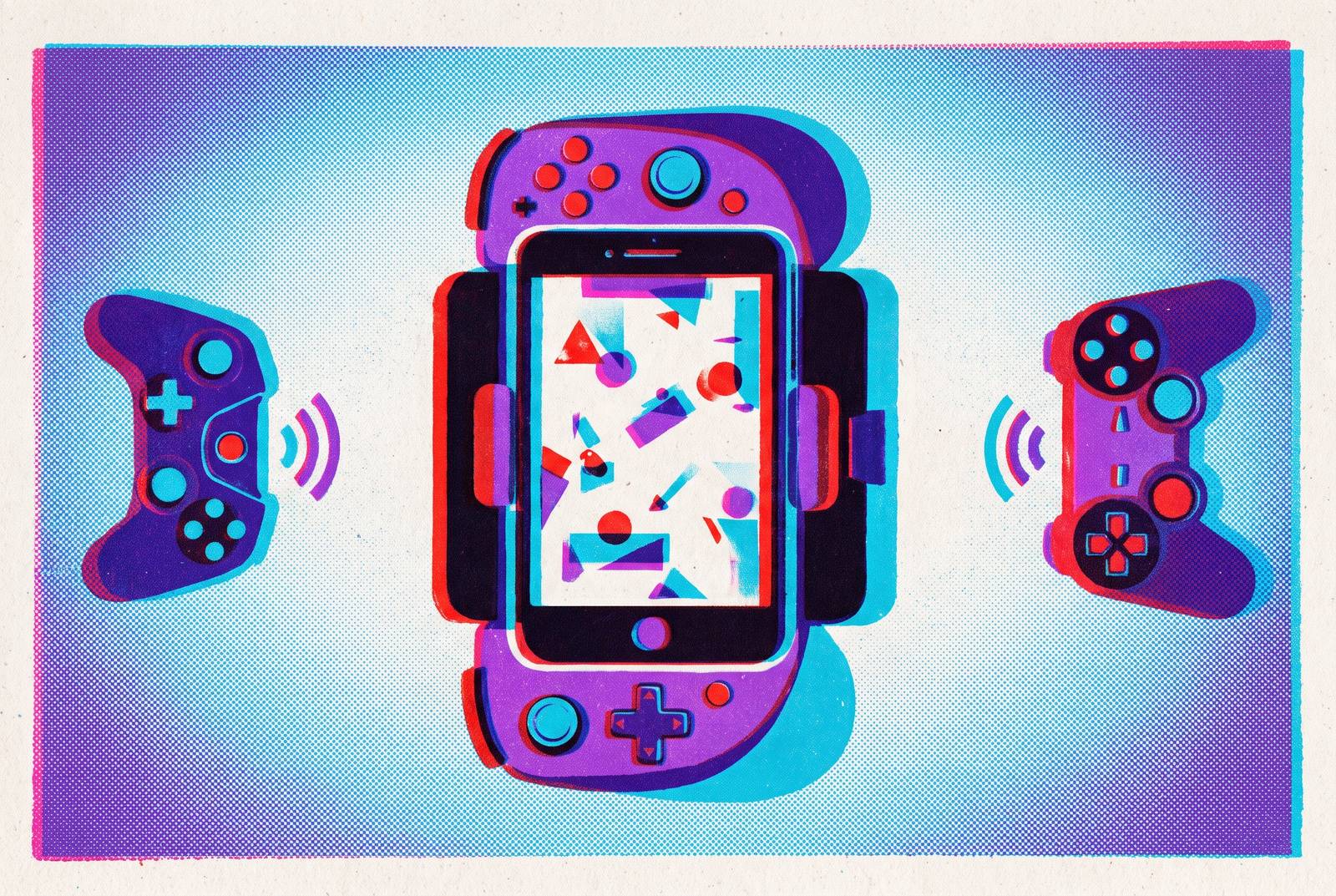
Apple Arcade requires every title to support controllers, but choosing hardware still takes more than finding a Bluetooth logo. The right mobile controller needs a recognized route into Apple’s software and a shape that suits where you play. Understanding MFi certification, native operating-system support, and phone-mounted designs turns that choice from a compatibility gamble into a practical decision.
Why Apple Arcade guarantees controller support — and what that guarantee actually covers
Apple’s controller requirement gives Arcade a consistent foundation that the wider App Store lacks. Outside the service, controller support is optional and inconsistent, so buying compatible hardware does not establish whether a particular game will accept it. Every title in Arcade must accept controller input.
The guarantee is narrower than it first sounds. It covers input recognition with a compatible controller. Adaptive triggers, rumble, rear paddles, and gyro aiming remain dependent on what a game’s developer chooses to support. Two controllers can both work with the same Arcade title yet offer different ways to play it. The distinction is between admission to the game and access to all the extras.
How Apple's compatibility framework actually determines what works
Apple has two ways for controllers to work on iPhone and iPad, through MFi certification or native operating-system support. Neither is a substitute for the other, and a controller does not need both. The routes establish which hardware Apple’s software knows how to handle. A controller needs one of these before grip shape, trigger feel, or the ease of wireless play comes into the choice.
MFi means Made for iPhone/iPod/iPad and is Apple’s official program for accessory certification. A certified controller has an Apple-approved authentication chip and follows a set control profile. That profile gives games built against Apple’s Game Controller framework a known layout of buttons and sticks to target. Without it, a successful wireless connection alone says little about whether a button will do what the player expects.
Certification also lets a controller do more with iOS, with firmware updates through a companion app, full button remapping through the Game Controller framework, and its battery percentage shown in Settings under Bluetooth. A wired MFi controller works when plugged in, while a Bluetooth MFi pad still needs pairing in Settings. MFi is therefore not another word for wireless, nor does certification remove Bluetooth latency.
Apple built support for DualShock 4 and Bluetooth-capable Xbox One controllers into iOS 13, then added Xbox Series X|S controllers and DualSense in iOS 14.5. DualSense Edge support arrived with iOS 16.4. These controllers have no MFi badge, but Apple’s direct operating-system support makes them reliable options. Natively supported Xbox and PlayStation controllers also have access to full button remapping through Apple’s framework.
Why does that distinction need so much attention? Bluetooth describes the connection. Unlike Android, where nearly any Bluetooth controller compliant with standard input-device protocols can pair and function at a basic level, iPhone requires MFi certification or native OS support. A generic pad without either may pair, but its button mapping may be unreliable, it may lack gyro support, and it may not work with the Game Controller framework.
Neither route makes every hardware feature universal. MFi does not add controller input to a touch-only game elsewhere in the App Store, and it does not guarantee that rear paddles, lighting, rumble, or a headset jack will work in every app. The useful questions are separate. Does Apple support this exact controller, and does the game support the features that make it appealing? Arcade answers the basic game-input question, but it does not answer every question about the accessory.
When a phone-mounted controller is the right starting point for iPhone Apple Arcade play
For someone who mainly plays Arcade on an iPhone, a controller that physically cradles the phone is the natural starting point. It turns the screen and controls into a single handheld unit. The combined unit more closely resembles a dedicated handheld console. That form suits play away from a fixed setup, where keeping the display and buttons together is the central advantage.
The phone-mounted shape explains how the device is held, while a wired direct connection explains how input reaches the phone. Wired USB-C models draw power from the iPhone, so there is no separate controller battery to charge. They also eliminate Bluetooth latency entirely because the signal passes through the controller circuitry without Bluetooth-stack overhead. Their effectively zero processing delay describes that input path, rather than a promise that every part of a game becomes instantaneous.
For an iPhone-first player, avoiding a separate battery and keeping the screen between the controls can be more useful than having a pad shaped for several devices. Neither advantage requires a long feature list.
That specialization also defines the trade-off. A phone-clip controller does not translate to Apple TV gaming, so it is not the right category for someone seeking one controller for both handheld and television play. A player who regularly leaves the iPhone for a larger display has a different problem to solve, even if the Arcade games remain the same.
When a standalone Bluetooth controller makes more sense — and which ones are safe picks
A standalone Bluetooth pad is the more versatile choice across iPhone, iPad, and Apple TV. Its controls are not built around holding a particular screen, so the same hardware can serve all three device contexts. The iPad makes the difference especially clear. A full-size iPad Pro or iPad Air cannot fit inside a phone clip, whereas a Bluetooth controller works naturally with the tablet resting on a case or stand. iPad Mini is the exception because some clip designs can accommodate it.
A compatible Bluetooth gamepad lets Arcade games run on the television without a controller mounted to a phone. Apple’s controller guide says that supported Apple TV models can use up to four compatible Bluetooth controllers at once. There is an important condition for shared play. When Apple TV is also using a Bluetooth audio accessory, the limit is one controller, so the audio setup can change what a multiplayer session permits.
For a single controller intended for both iPhone and Apple TV, the Xbox Wireless Controller with Bluetooth is a safe starting point. Apple explicitly includes it in its supported-controller documentation, and Series X|S models have iPhone support from iOS 14.5. The full-size controller has textured triggers and bumpers, a hybrid D-pad, a Share button, and a 3.5mm headset jack. Those are hardware attributes, not a promise of universal feature access. In particular, the presence of an audio socket should not be mistaken for guaranteed headset audio in every Apple gaming context.
PlayStation controllers provide another native-support route, including DualShock 4, DualSense, and DualSense Edge with their respective OS requirements. The choice becomes more specific when advanced features are the attraction. Older Apple TV models may not support newer features such as adaptive triggers. Buyers considering a DualSense primarily for its television features should therefore check Apple’s current compatibility documentation to establish which features work alongside the recognized buttons.
8BitDo Ultimate is an MFi-certified standalone controller that pairs through Bluetooth, has a comfortable full-size shape for longer play sessions, and comes with a charging dock. It works with Arcade titles, cloud gaming, and other uses. 8BitDo’s Apple compatibility page states that rumble and motion control are not currently supported on Apple devices. Players who prioritize either capability should account for that limitation before choosing.
Compatibility depends on the controller generation, iOS or tvOS version, firmware, and individual game, particularly where similar product names span different hardware. The practical step is to check Apple’s current controller compatibility documentation before purchase. A familiar name identifies a family, but it does not settle which member will fit a particular setup.
What to avoid — controller types that create real compatibility problems
The most consequential mistake is buying a generic Bluetooth gamepad with neither MFi certification nor native Apple OS support. Such a controller can pair with an iPhone while providing no usable button mapping, no Game Controller framework integration, and no Arcade functionality. The connection can look more promising than it is. Knowing which compatibility route the pad uses is more protective than relying on a broad claim that it supports Bluetooth.
Low-end listings described only as “Bluetooth Gamepad” deserve particular care because these products frequently fail MFi compliance and use older Bluetooth chips that can cause unstable connections during gameplay. Unsupported hardware is a category that the compatibility framework helps identify. Documented Apple support is the useful distinction.
Rear paddles, RGB lighting, built-in rumble, and headset audio may not activate in Arcade titles even on certified hardware. Certification is not an all-access pass for extras. Where one of those features motivates the purchase, the game’s support has to be part of the assessment as well as the controller’s credentials.
Matching controller type to how and where you actually play Apple Arcade
The buying decision should begin with the screen that gets the most use. For someone who plays mostly on iPhone, a phone-mounted direct-connect controller keeps the most in one unit, with no separate controller battery and no Bluetooth input path. For iPhone plus a full-size iPad or Apple TV, a standalone Bluetooth pad is the more versatile pick. That shifts the priority from handheld integration to reuse across devices. Natively supported choices such as Xbox Wireless and DualSense, or MFi-certified options such as 8BitDo Ultimate and SN30 Pro, address that broader pattern.
iPad Mini leaves more room for personal preference because either a compatible clip design or a standalone controller can work. The choice depends on how the tablet will be held or positioned. For someone who plays mostly on Apple TV, a supported native or MFi Bluetooth pad fits, and compatibility checks should use the exact Apple TV model and tvOS version.
The same purchase can also serve uses beyond Arcade. Compatible hardware extends to Xbox Cloud Gaming, PS Remote Play, Steam Link, and GeForce NOW on iPhone, which strengthens the case for quality hardware. Comfort then deserves as much attention as compatibility. For sessions longer than an hour, grip comfort and stick precision can decide whether a technically suitable controller is pleasant to keep using.
Apple Arcade moves the central question from whether a game accepts controller input to whether the hardware fits the way someone plays.