Steam Deck Xbox Cloud Gaming Performance
The Steam Deck's CPU doesn't matter—what counts is your Wi-Fi and Microsoft's servers.
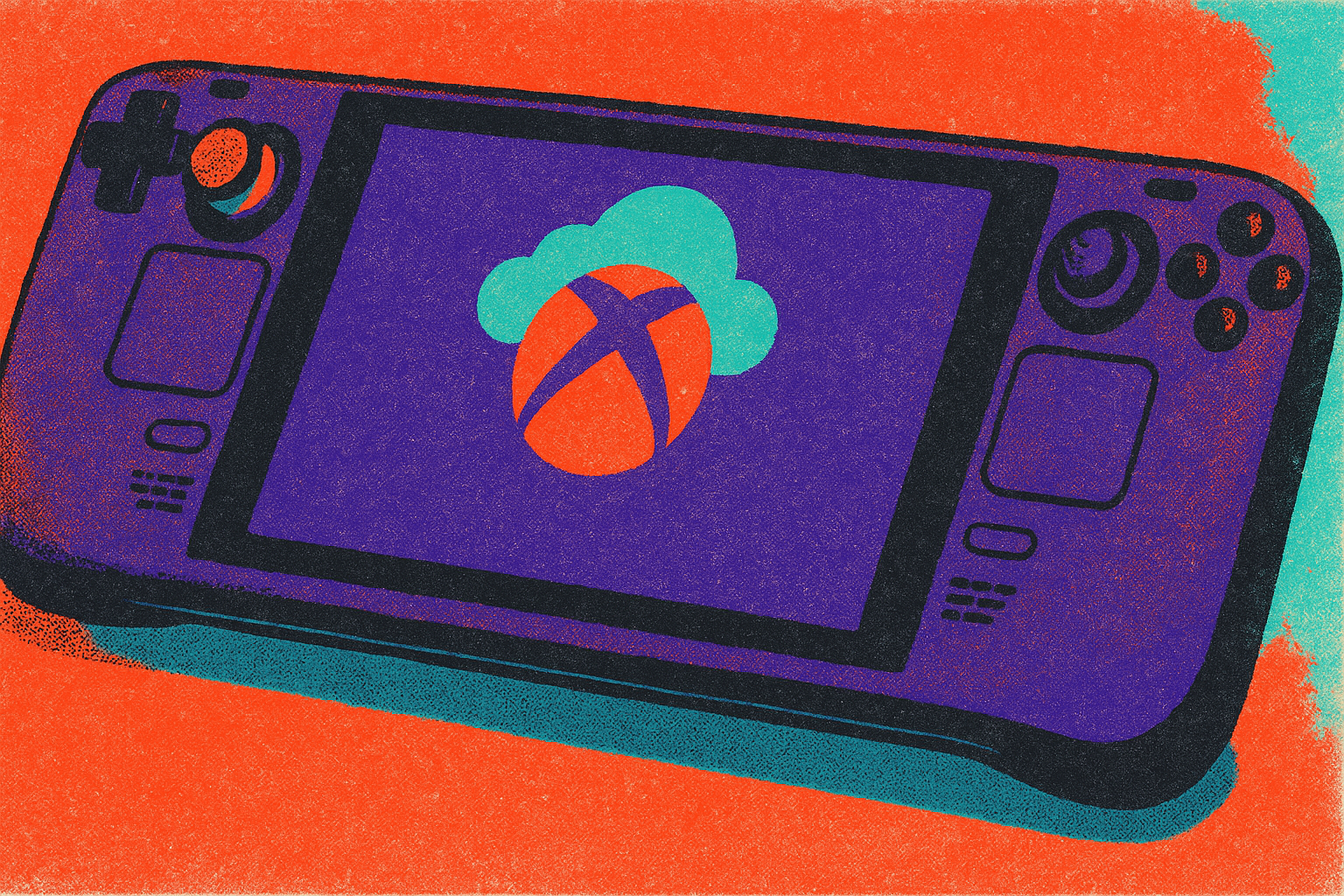
Xbox Cloud Gaming on Steam Deck works, and it works well, but only once you understand what's actually happening under the hood. This is a piece about that gap: the setup steps most people skip, the network conditions that quietly wreck a session, and the configuration choices that separate a smooth night of Avowed from a stuttery mess of dropped frames. The short version is that your Steam Deck's CPU and GPU are basically bystanders here, and the heavy lifting happens on a server farm somewhere. Your job is just to get out of the way.
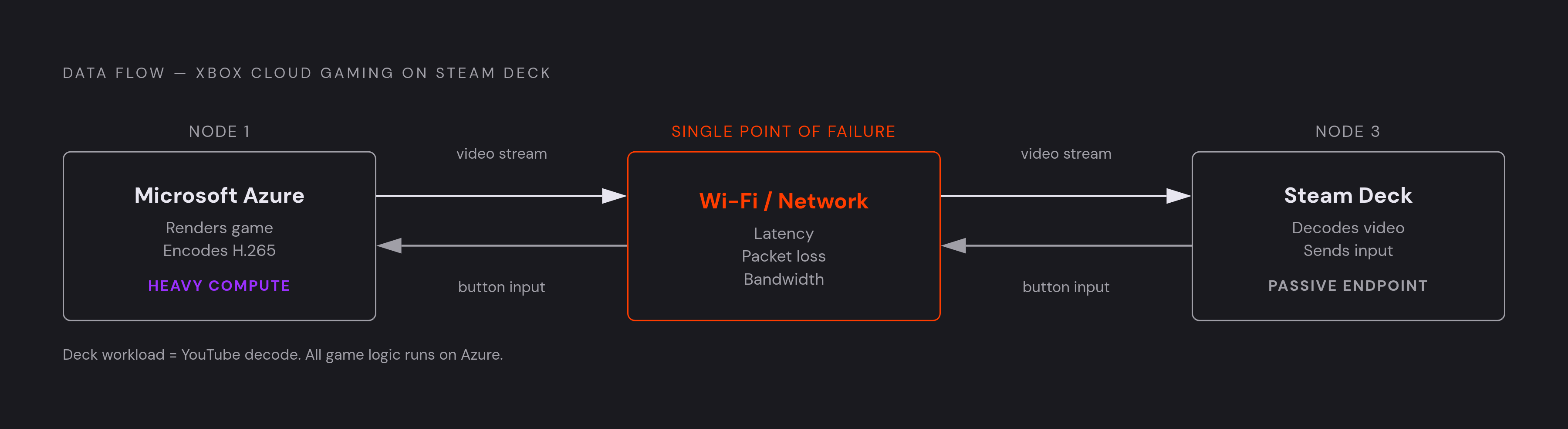
Xbox Cloud Gaming streams games from Microsoft's Azure infrastructure, running on custom hardware built around the Xbox Series X. What lands on your Steam Deck is a live video feed, and what leaves it is your button presses, sent back over the internet in real time. That's the whole exchange. Your Deck isn't rendering Cyberpunk 2077's ray tracing or loading textures off an SD card; it's decoding a video stream, the same way your phone decodes a YouTube video, just with much less room for buffering error.
This matters because it flips the usual troubleshooting logic on its head. If a native Steam game chugs, you check settings, maybe drop resolution, maybe blame the APU. If Xbox Cloud Gaming chugs, none of that helps, because the bottleneck almost never lives on the Deck itself. It lives in your Wi-Fi, your router placement, or Microsoft's server load that afternoon. Access happens through a browser, Edge specifically, not a native app, which explains most of the setup friction covered later in this piece. A Game Pass Ultimate subscription is also required to open the door at all.
One clarification before moving on, because it trips people up constantly: Xbox Cloud Gaming is not the same thing as Xbox Remote Play. Remote Play streams from your own console, sitting in your own living room, over your own home network. Cloud Gaming streams from a data center you'll never see, potentially hundreds of miles away. They look nearly identical on screen, but under the hood, the latency math is completely different, and that difference shows up the moment your connection gets shaky.
The two modes of the Steam Deck and why they both matter for setup
Steam Deck runs two distinct environments, and getting Xbox Cloud Gaming working means bouncing between them.
Gaming Mode is the default. It's the controller-friendly, Big Picture-style interface you land on when you power the thing on, and it's where you'll actually spend your play time. Desktop Mode is the opposite: a full KDE Plasma Linux desktop, complete with a taskbar, a file manager, and yes, a terminal. This is where you install Edge, run a command line override, and configure launch options. Nobody boots a Steam Deck expecting to open a terminal, but here we are.
The reason this two-step dance exists comes down to what the Steam Deck actually is. It's not a sealed console like a PlayStation; it's a full Linux PC wearing a controller-shaped costume. That's a feature, not a bug, and it's why the Deck can run Edge, emulators, and a dozen other things a locked-down console never could. Flexibility has a price, though, and the price here is a few extra steps that an Xbox Series X owner never has to think about.
The bridge between the two modes is something called a Non-Steam Game shortcut. Essentially, you're telling Steam to treat a specific Edge browser window, one pointed at xbox.com/play, as if it were a game. Once that shortcut exists, it shows up in your Gaming Mode library like anything else, controller support included. Do the setup work once in Desktop Mode, then never think about it again in Gaming Mode.
Step-by-step: installing Edge and getting Xbox Cloud running on Steam Deck
Before touching anything, confirm four things: your Steam Deck is on the latest system update, you have Microsoft Edge Beta for Linux ready to install, your Game Pass Ultimate subscription is active, and you're on a strong Wi-Fi signal, ideally 5GHz. Skip any of these and you're troubleshooting blind later.
Start in Desktop Mode. Download and install Microsoft Edge Beta for Linux; this is the flatpak build, not a Windows executable, so make sure you grab the right package. Once it's installed, open Konsole, the terminal app sitting in your applications menu, and run this command:
flatpak --user override --filesystem=/run/udev:ro com.microsoft.Edge
This line is not optional, and it's the step almost everyone misses on their first attempt. Without it, Edge can't see your controller's device permissions properly, and you'll find your Steam Deck's buttons doing absolutely nothing once you're inside a stream. This step grants a browser read access to udev so it recognizes gamepad input, and skipping it means your A button won't respond once a game loads.
Next, add Edge as a Non-Steam Game inside Steam itself. In the launch options field, paste this:
--window-size=1024,640 --force-device-scale-factor=1.25 --device-scale-factor=1.25 --kiosk "https://www.xbox.com/play"
That kiosk flag strips out the address bar, tabs, and bookmarks bar, so what you get in Gaming Mode looks and feels like a real app rather than a browser tab someone forgot to close. Switch back to Gaming Mode, find your new shortcut, and launch it. If the override command worked, your controller should already be mapped and ready before the first game even loads.
What Microsoft's streaming upgrades actually changed for Steam Deck players
Microsoft rolled out a streaming technology update aimed specifically at browser-based play on Linux and ChromeOS, and Steam Deck sat squarely in that update's crosshairs. In its own announcement, Microsoft described the change as completing "a long journey of upgrading our browser gaming experience to a different streaming technology," with higher resolution and smoother playback as the payoff.
Under the hood, this runs on an updated H.265 codec pipeline. That's worth flagging because it's a different path from what GeForce Now uses, which leans on AV1 encoding. The codec choice affects how gracefully the stream handles bandwidth squeezes, and it's a distinction that shows up again later when comparing services head to head.
Resolution now tiers by subscription level: Ultimate members get streams up to 1440p, while lower tiers sit at 1080p or 720p. The Steam Deck's own display resolution means that 1440p stream gets slightly downsampled before it hits your eyes, but it's still a clear step up from the 1080p ceiling of a year ago. Because the actual game logic runs on Series X-equivalent server hardware, frame pacing and load times stay consistent no matter what chip is inside your particular Deck. A base model and an OLED model get functionally identical game performance here, because neither one is doing the work.
The practical upshot: the version of Xbox Cloud Gaming you get today, out of the box, is meaningfully better than what existed even twelve months back, and the configuration effort described in this piece is front-loaded. Set it up once, and you're not fiddling with it every session.
Network conditions that make or break the experience
Since your Deck isn't rendering anything locally, your Wi-Fi becomes the single biggest variable in how good or bad this experience feels. Everything else, the codec, the server hardware, the resolution tier, is secondary to whether your router is actually delivering a clean signal.
5GHz Wi-Fi beats 2.4GHz here, and it isn't close: less interference from neighboring networks, higher throughput, lower latency on a typical home setup. The Steam Deck OLED supports Wi-Fi 6, and pairing it with a capable router gives you a meaningful advantage over older hardware. For anyone chasing the absolute ceiling, a wired connection through a USB-C dock removes wireless interference from the equation entirely; it's the most reliable option available for a stationary setup.
Distance from your router matters more than most people assume. Half the "my stream keeps freezing" complaints online could probably be solved by walking ten feet closer to the access point, no configuration change required. Shared network load counts too: someone streaming a 4K movie in the next room, or a big download chewing bandwidth in the background, is directly competing with your cloud session for the same pipe. Cloud gaming doesn't get special priority just because it's sensitive to hiccups.
Public Wi-Fi, for what it's worth, is fine for casual play but inconsistent by nature. Hotel networks and café connections tend to spike in latency and drop frames unpredictably, so keep expectations modest if you're trying to squeeze in a session away from home.
In-session settings and configuration choices that improve performance
A few adjustments inside Edge itself are worth checking. Keeping Edge's settings in good order is worth a quick check before assuming a streaming problem is network-related. It's also worth keeping the Beta build updated regularly, since Microsoft continues to improve the browser-based streaming experience over time.
Inside the Xbox Cloud interface, resolution is tied to your subscription tier. If the picture looks softer than expected, check your network before assuming something's misconfigured on the Deck's end. Input latency is shaped significantly by network conditions, and a strong, low-latency connection is the most reliable way to keep it in check.
When something feels off, separating a local decode problem from a network problem upstream saves a lot of guesswork. Because Edge treats your Deck as a generic Linux browser session rather than a native Xbox controller, it's worth double-checking your button mapping inside the Xbox Cloud interface itself if anything feels off.
Which games on Game Pass hold up best when streamed to a handheld
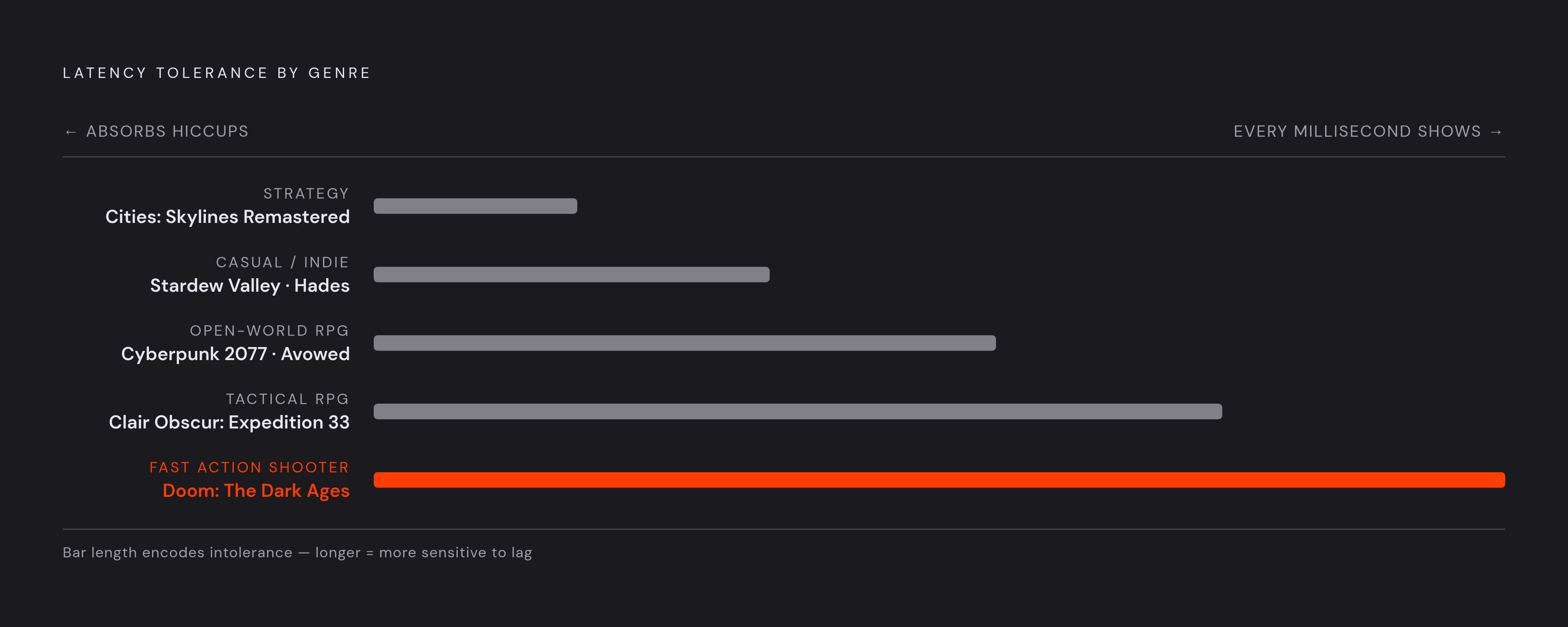
Not every genre tolerates a network hiccup equally well, and this is where a little foresight saves a frustrating session. Fast, twitch-based shooters feel every millisecond of added latency; slower, more deliberate games barely notice it.
Avowed is a strong fit: a first-person fantasy RPG with combat paced deliberately enough that latency rarely intrudes, and visually rich enough to show off what the improved streaming resolution actually looks like. Clair Obscur: Expedition 33 leans on tactical, timing-flexible combat, which absorbs the occasional frame inconsistency far better than a reflex-based shooter would. Cyberpunk 2077, especially with the Phantom Liberty expansion, is forgiving of minor latency drift during open-world exploration, and its sheer content density makes it a good choice for long sessions away from a desk. On the Essential tier, Stardew Valley and Hades both stream beautifully; low visual complexity keeps the video encode clean even when bitrate drops. Cities: Skylines Remastered rounds things out nicely too, since strategy games are inherently forgiving of latency and read well at 1080p on a smaller screen.
Doom: The Dark Ages sits at the other end of the spectrum. It's playable, but fast, high-speed combat makes any network hiccup far more obvious, so it demands a genuinely strong connection to feel right. Game Pass's catalog runs deep, and matching the game to the moment, and the network, is worth thinking through before committing to a long session with no backup plan.
How Xbox Cloud on Steam Deck compares to GeForce Now, PS Remote Play, and Steam Link
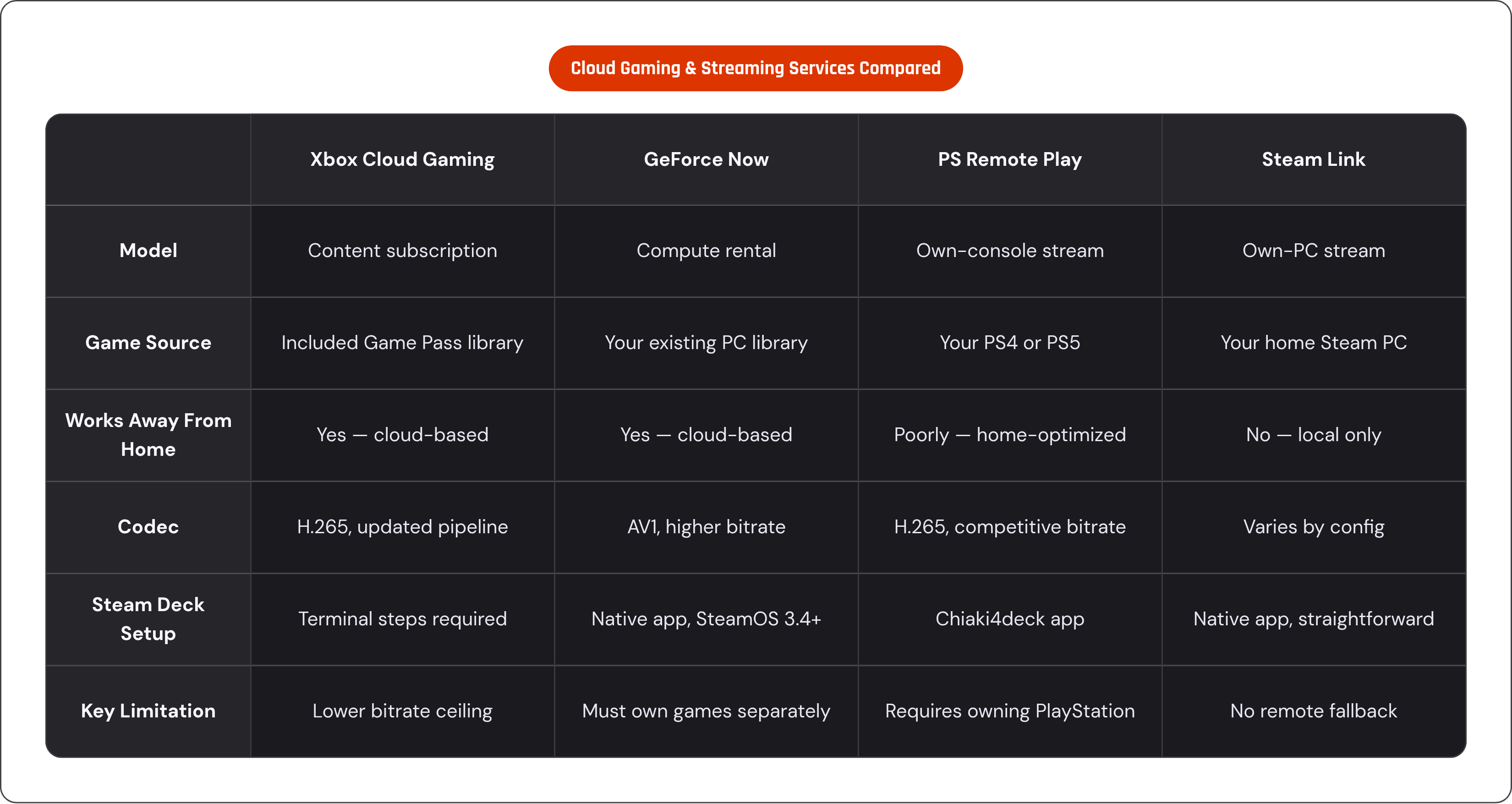
The clearest way to separate these services is by business model, not just technology. Xbox Cloud Gaming is a content subscription; pay one fee, and hundreds of curated games are simply included. GeForce Now works differently: it's a compute rental. You bring your own library from Steam, Epic, or elsewhere, and NVIDIA runs it remotely on their GPUs.
On raw technical ceiling, GeForce Now currently sits higher. It uses AV1 encoding at notably higher bitrates, runs Ultimate-tier sessions on RTX 5080 "Blackwell" server hardware, and supports features like DLSS 4 and Cloud G-Sync. The tradeoff is that you need to already own the games you want to stream, and the native GeForce Now app on Steam Deck requires SteamOS 3.4 or newer. Xbox Cloud Gaming's H.265 pipeline caps at a lower bitrate than GeForce Now's AV1 stream, and that difference can show up in demanding streaming conditions.
PS Remote Play, run through the Chiaki4deck app, is a different animal entirely: it streams from your own PS4 or PS5, over your own home network. Latency drops dramatically compared to anything cloud-based, and its H.265 stream runs at a genuinely competitive bitrate. The catch is that it only performs well at home, and obviously requires owning a PlayStation in the first place. Steam Link follows the same local-network logic, just aimed at Steam games running on a home PC: free, extremely low latency on a solid connection, but with no cloud fallback if you're away from your router. Xbox Remote Play, streaming from your own Xbox rather than Microsoft's servers, shares that same lower-latency advantage at home, with the added bonus of working reasonably well over the internet when you're away.
Put simply: Xbox Cloud Gaming is the most flexible option for playing away from home without owning a console at all, and GeForce Now suits people who already have a sprawling PC library and want to stream it elsewhere. PS Remote Play and Steam Link are built for home use, full stop. And for anyone who wants this same flexibility without carrying a Steam Deck around, pairing a phone with a controller grip built for mobile gives you the identical Game Pass subscription and the same browser-based Xbox Cloud access, just in a form factor that fits an actual pocket.
Steam Deck vs. ROG Xbox Ally X for Xbox Cloud Gaming specifically
For local gaming, the ROG Xbox Ally X has a real GPU advantage; Tech Insider's July 2026 comparison put the gap in theoretical graphics throughput at a wide margin in the Ally X's favor. That advantage barely registers for Xbox Cloud Gaming specifically, though, since both devices are just decoding an incoming video stream, and neither one struggles with that workload.
Where the Ally X does pull ahead is in convenience. Running Windows 11 natively, installing Edge and getting Xbox Cloud Gaming working is a straightforward browser install; no flatpak overrides, no terminal commands, none of the Konsole steps described earlier in this piece. Its full-screen Xbox experience, added in 2025, also pulls Game Pass, Steam, and other libraries into one console-style launcher, a genuine convenience for anyone deep in the Xbox ecosystem already. Its higher-resolution, 120Hz display makes the higher-bitrate 1440p stream feel more worthwhile too, whereas the Steam Deck OLED's native resolution slightly downsamples that same stream, even if it's still a clear improvement over 1080p.
Then there's price. The Steam Deck OLED costs meaningfully less than the Ally X, a gap that only widened after Valve's May 2026 price increase, given how much higher the Ally X's price point already sits. So the honest read here: if Xbox Cloud Gaming is your primary reason for buying a handheld, the Ally X has real UX advantages worth paying for. If you want cloud gaming as one feature among many on a cheaper, more open Linux device, the Steam Deck setup, once done, gets you there just fine.
What the experience is actually like day-to-day, and where it still falls short
When everything lines up, strong 5GHz Wi-Fi, an updated Edge install, the flatpak override actually applied, a stable connection to a nearby Azure server, Xbox Cloud Gaming on Steam Deck is genuinely good. Responsive, visually clean, running on hardware equivalent to an Xbox Series X regardless of what chip sits inside your particular Deck.
Getting there involves real friction, though, and it's worth naming honestly. The terminal command, the Non-Steam Game shortcut, the specific launch flags: none of it is hard, exactly, but it's a lot more than plugging in a controller and pressing play. Do it once, correctly, and the payoff is a shortcut that just works from then on. Do it halfway, skip the flatpak override, say, and you'll be back in Konsole a week later wondering why your controller stopped responding mid-session.
Some rough edges remain and are worth naming too. Latency is still perceptible in fast-action games, even on a good connection; it's rarely a dealbreaker, but it's not nothing either. The H.265 codec, even after its bitrate improvements, shows compression artifacts in high-motion scenes more readily than GeForce Now's higher-bitrate AV1 stream does. Step away from a reliable connection, travel, a hotel room, a coffee shop, and the whole experience degrades fast; this isn't a setup built for unpredictable environments. Because the entire thing runs through a browser pointed at a Microsoft-controlled service, the experience can shift with a server-side update at any time. Some of the exact steps described in this piece have already changed once over the past year, and there's no guarantee they won't again.
What it earns, though, is real: instant access to hundreds of games on a $400-ish handheld, no downloads, no storage anxiety, no waiting for a 90GB patch before bedtime. For a device built to be a full Linux PC first and a gaming console second, that's not a bad trade for a few minutes spent in a terminal window.